Help System Search
HomeTeamsONLINE Sports Websites for Teams, Leagues & Schools
Use the Navigation Links page to edit the links that Visitors use to move through your site.
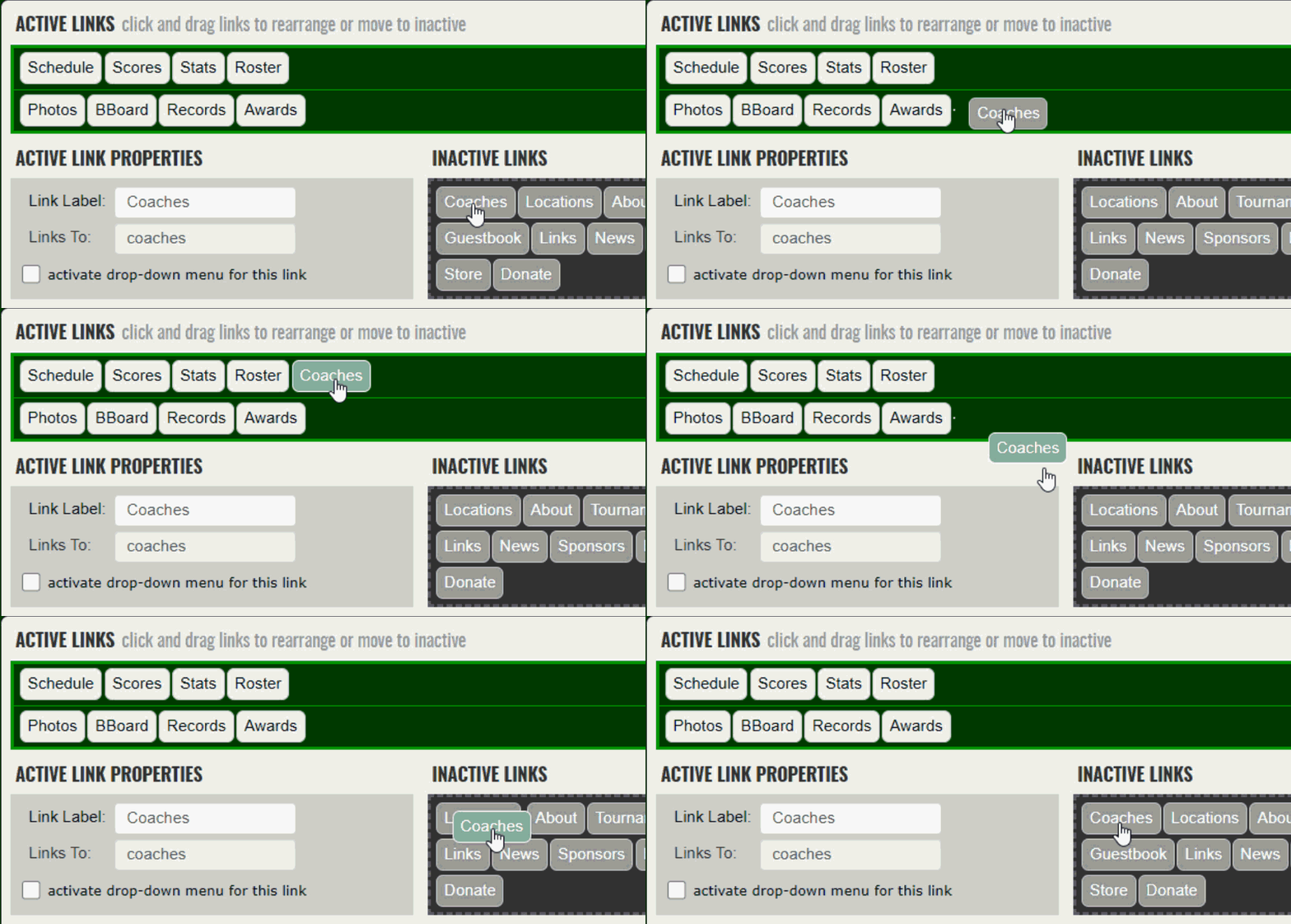
To move links, click and drag:
| The green ACTIVE LINKS field |
| The links that are currently active on your website for Visitors to use are displayed in the green ACTIVE LINKS field at the top of the page. Links can be dragged and dropped into the order you wish for them to appear. Keep in mind that your style selections are not displayed on this page. Click Save and then View Website to see the links displayed with your style selections. |
| The ACTIVE LINK PROPERTIES field |
Click on any link to activate it in the LINK PROPERTIES area:
|
| The Active Sub-Links field |
| When the Sub-Links box is checked for a navigation link, a smaller green field appears. This smaller green field displays the Sub-Links (or drop-down links) that are available when a visitor hovers over the main link. The smaller green Active Sub-Links field works the same was as the larger field at the top of the page. Tip: When creating Sub-links (also called drop down menus), we recommend creating a "Label Only" link to organize the Sub-links. More details about creating Label Only links can be found in the New Custom Link section below. |
| The ACTIVE SUB-LINK PROPERTIES area |
|
| The dark grey INACTIVE LINKS field |
| This is a storage area for links that are not currently active on your website. When you want to save a link, but not allow visitors access to it, simply drag and drop the link into the dark grey PAGES NOT LINKED field and click Save. To activate a link that's been stored, drag the link from the PAGES NOT LINKED field and drop it into the green field you wish for it to be accessible in. Click Save. |
| The light grey CUSTOM LINK area |
Use the CUSTOM LINK area to create a brand new link. Use the following steps to create the link:
|
Always be sure to click the green Save button to make your changes live!
Different link types are indicated by different colors to help quickly identify what type of link you're working with.
| White |
|
Default Links are indicated in white. The links you see will depend on your membership level.
Every membership level will have the basics active be default:
Mutli-team sites will also have a default Teams link. |
| Green |
|
These links are green:
*AllStar membership level required. |
| Teal |
| When a link is active in the Link Properties box, it will display in teal.
|
| Grey |
|
When a default link is inactive in the Inactive Links field, it is indicated in grey.
If you are part of a multi-team organization, the organization can push links down that will appear on your website. These links are controlled by the organization & will appear in grey. |

Toll-free Support Hotline
(800) 486-0505
Weekdays 9:00 AM - 4:00 PM (EST)
Phone support not available on federal holidays.

Email Support
HomeTeamsONLINE continues to expand and improve its features thanks to the feedback and comments from our users. Please let us know if you have any questions or suggestions.