Help System Search
HomeTeamsONLINE Sports Websites for Teams, Leagues & Schools
- once the page opens go to the Setup Teams box on the left
- click the Convert to Multi-Team button to update the site
Converting is a free service. However, your subscription will change based on the number of teams and the package you are using. The price of your renewal will reflect these changes. For information on League pricing, check out our League Pricing link at the top of our Home Page.
To password protect the stats:
- Go to Website > Website Password
- In section (2) click Add Special Security to a new page > link
- Click the Select a Page dropdown & select Stats
- Pick one or more groups to assign the password to & click Set Protection
- In section (3) enter a password for each group (or select Use ONE password for ALL groups & enter one password)
- Click SAVE SETTINGS to make your changes live
This will hide all stats, including the Stats page, the Stat Leaders on the Home Page, Box Scores & Game Summaries, & stats on the Player Profiles. Instead, Visitors will see a show stats link that they can click to enter the password & view the stats.
When someone is asked for the password, they can click to request the password & send you a request for the password.
Contact Support to:
- change the default "Click here to request the password" message
- show the Stat Leaders when all stats are password protected
- hide the Show Stats link from Player Profiles or everywhere on the site
Want access to more features and functionality? Upgrade your membership at any time:
- Go to the hamburger icon & click upgrade.
- In the SETUP TEAMS box on the left, click the name of the League or Team you'd like to upgrade (Single-Teams sites will click to select the new membership level and click BUY NOW).
- In the popup, select This Sport (if upgrading a League) or This Team (if upgrading a Team) and select your membership level.
- Click change package. Click the gold BUY NOW button to be brought through to the secure payment page.
Notes:
- To prevent payment errors, make sure that the Billing Contact info matches the address the statement for the card is sent to.
- The system will only charge a prorated amount for your upgrade, based on the amount of time left in your current membership cycle. See the Annual Renewal Cost listed at the bottom of the PACKAGE COST box on the right to see when your current membership cycle ends and the amount due at that time. The amount due will include your upgrade.
- Users that are still in the 30 free Trial period can simply click Continue Trial to upgrade.
The system will accept 0 or 00 as a Player number. Enter these numbers as you any other.
The system will not recognize any other numbers that start with a zero. For example, entering "04" will display as "4" on the Visitor's site.
First, visit the site you'd like to give your Visitors access to and copy the entire URL web address.
Return to the text area you'd like to add the link to and:
- Type the text you want Visitors to click on to access the new website, or use the Image Manager icon to add an image to the text module.
- Highlight the text (or click the image) and click the Link tool in the text editing toolbar (hover over the icons to display their name). In the popup, paste the URL click OK.
- Be sure to click the green Save button for the text module to make your changes live.
Tip: If you like, the website can open in a new window by clicking the Target tab in the popup and choosing Open in a New Window (_blank) in the dropdown.
To edit a player:
- go up to the Rosters & Staff tab and select Roster
- click the "- teams -" drop down and select a team
- click the Info button for a player
- edit the player information
- once it looks good, go up and click the Update Player button to save the changes
To make certain fields required or recommended by the League when Teams enter info, contact Support and specify which fields you would like to require.
To add or update coaches or staff information that is published on your site:
- Go to People > Manage People & Staff. Stay on the Staff Directory.
- To add, click add a coach or staff. To edit, click the pencil icon for the coach or staff member.
Tips:
- Use the bulk edit to quickly update a limited number of fields for every person in the Staff Directory.
- A list of first & last names can be added quickly by going to the gear icon > Quick Coaches Ad link, or click the import button to import an Excel spreadsheet of more detailed info.
To archive all players:
- Go to hamburger menu > Schedule > Season Update.
- Scroll down and click the Make ALL players Inactive button.
To make all players Unassigned (league only):
- Go to People > Roster & click more options.
- Click make all players unassigned. Active players on every team move to Unassigned Players.
To move one team's players, click bulk edit, tick the checkbox on the team's row, then click trade.
To archive specific players:
- Go to People > Roster & click the pencil icon button to the right of the Player's name.
- Scroll down to the Status module & click the Active toggle.
Making a player inactive will not remove them from Stats including the Stat Leaders. The only way to remove current Season stats is by permanently deleting the Player.
The Roster will activate a View Past Players link. Click the gear icon & go to Roster Display to turn off the Past Players link,
To adjust how the Roster & Player Profiles display, go to People > Roster > gear icon on the far right. Click Roster Display to update how the Roster page displays, click Profile Display to update how the individual Player Profiles display.
Using the available options, admins can fine-tune settings and control what info appears to the public. Click through each of the options for even further customizations.
When the green "updated" message appears after changing a setting, X out of the popup and click ok to refresh.
Contact Support if you're having trouble finding a specific setting!
Text modules (like those on the Home page and on Player profiles) and Custom Pages can hold up to 100,000 characters.
It is not possible to change or increase these limits.
Use the Clean HTML tool found in the text editing toolbar to remove any extra HTML code. If your text still does not fit, we recommend breaking up the information in more than one Text module or Custom Page.
Individual player stats are only available for Baseball, Basketball, Football, Hockey, Lacrosse, Soccer, Softball, and Volleyball.
Stats are only available for sites with the PRO-STYLE, ALL-STAR, and CHAMPION packages.
To enter stats, you must have a game in your schedule and players with assigned positions in your roster. Make sure you have entered your games as "games" (not events) otherwise the stats button will not appear.
To enter stats:
- Go to the hamburger menu > Schedule > Schedule & Results and click stats to the left of the game you wish to add stats for
- Click the stat category you wish to update and enter your stats.
Tip: Click the Help tab on the far right (below the purple View Website button) for more assistance with adding Stats.
To trade a player to another team:
- Go to People > Roster & click the Trade button to the right of the player's name.
- Use the dropdown in the popup to choose the team you wish to trade this player to.
To disable this option for teams within a multi-team structure:
- Go to People > Roster & click the options icon on the far right. Click Roster Options.
- Toggle Allow Teams to Trade Players to NO & X out of the popup.
Tips:
- there must be more than one team active in your multi-team structure for this option to appear
- all profile info including and Stat* history will also be traded
* minimum Pro-Style membership level required.
To easily add past season stats in bulk:
- Add a game into a past season
- Switch your view to the previous season to list the new game, then click the Stats button
- Once the page opens, click the "Switch to Season Totals Stat Entry View" link on the bottom right. (Football users can skip this step)
- Enter the past season's totals for each Player in each category and click Save
Notes:
- It is not possible to accurately track all stats this way, such as per-game statistics.
- Stat Leaders on the Home Page will not show correctly based on bulk-entered stats, so only enter bulk stats for past seasons.
- GP totals are hidden by default. If you want them shown instead, contact Support.
The Roster Page on your visitor website has a Print button - but there is also a (non-public) printable roster for site administrators on the Roster feature page. This can be customized to print information that you want:
1. Login and go to Rosters & Staff > Roster
2. Click the Options tab and you'll see the Printable Roster link
(Only for teams; leagues must select one team from the -teams- dropdown)
3. Set the checkboxes and generate the Printable Roster.
This allows you to create a custom print with only the roster info you need. For example, you could create aroster with just name, number & position, or create a sheet with only name and contact/emergency contact info. You can even contact Support to set the deafult checkboxes when you click this link.
To change the title that displays on a browser tab:
- Go to Design > Site Details & scroll down to open the Advanced Website Settings section. Open the SEO settings.
- Update the Browser Tab Title field & click the green save button to make your changes live.
Contact Support to change the default title of a specific page.
To change the default team (or division) in the roster or schedule, click the Options tab on the right, select the Roster Display (or Schedule Display) section and use the "Default Team/Division Filter" drop down.
Contact support to set a default team on a page with no Options tab.
To add a player:
- Go to People > Roster and click add a player
- Enter the info about the player and click save.
There are many options available after adding Players to the Rosters, including inviting the player to manage their own personal contact info & accessing the Player Dashboard tools like the Chat. On the Roster page, click the gear icon on the far right to check out the Help for this feature!
To import many players from an Excel spreadsheet:
- First, go to People > Import People and click the question mark on the far right to be sure your spreadsheet is organized properly.
- When your data is ready, click I'm Ready. Let's Go!.
To switch the format from "last name, first name" to "first name, last name", enter both the first and last names in the Last Name field. This will list the Roster by the players' first name.
The player attendance feature allows players to list their attendance for games & events. Go to People > Roster > gear icon (on the right) > Attendance Feature to activate & customize.
Use the Alternate Password option by entering passwords in the fields under gear icon > Attendance Feature.
OR
Use the Attendance Feature, your players will need to be invited to create their own login:
- To invite a new player, go to People > Roster and click add a player.
- To invite an existing player, go to People > Roster & click to edit the player's profile. In the Contact Info module, click the send request icon.
Players will use the password they create to list their attendance.
Multi-team structure:
- games between two teams in your structure will show a separate attendance chart for each team
- teams without login pages will have the attendance notification sent to the league admin
Contact support to:
- not send any notification emails
- add a CC: address to the attendance notification or to change addresses
- hide the list for specific game types
The Birthday feature lets you add your players’ birthdays to the schedule.
To add birthdays:
- Go to People > Roster and click the gear icon on the far right.
- In the popup, click the Birthdays! link.
Tips:
- Multi-team sites will need to select a team before clicking the gear icon
- Birthdays are only added to the current season
When opening an excel download your computer may display the following message:
"The file you are trying to open, '[filename]', is in a different format than specified by the file extension. Verify that the file is not corrupted and is from a trusted source before opening the file. Do you want to open the file now?"
This is a security feature of Excel and unfortunately cannot be avoided. Simply click "Yes" to open the file.
Site pages hide empty columns to save space and reduce clutter. Contact support if you want a page to display all the columns (including the empty ones).
To download the roster:
- go up to the Rosters & Staff tab and select Roster
- click the Options tab on the right
- once the window opens, click the "Download Roster" link at the bottom of the window and save the Excel file to your computer
To set the number of innings:
- Click Design > Site Details. In the Sport Details box, click the pencil icon
- Use the Innings per Game dropdown to select
Max Innings
The baseball Scoreboard goes up to 12 innings. If a game exceeds 12, the extra innings can be noted in the Play-By-Play or Game Summary tabs.
To hide the player Bio, use these steps:
- go to the Rosters & Staff > Roster page
- click the Options tab on the right.
- Click the Profile Display tab.
- set "Show Bio Section" to "No". The setting will automatically save and apply to your site.
- close the options window and click OK to confirm.
To hide the player birthdate, go to the Rosters & Staff > Roster page and click the Options tab on the right. In the Profile Display section, set "Show Birthdate" to "No", close the window and confirm.
Hide Height
To hide the player height, go to the Rosters & Staff > Roster page and click the Options tab on the right. In the Profile Display section, set "Show Height" to "No", close the window and confirm.
Metric Units
The Options tab also has options for switching to metric units.
To hide the player highlights use these steps:
- go to the Rosters & Staff > Roster page
- click the Options tab on the right.
- Click the Profile Display tab.
- set "Show Highlights Section" to "No". The setting will automatically save and apply to your site.
- close the options window and click OK to confirm.
Contact support to require team admins to enter certain fields (like Email or Emergency Phone) when adding new players to the team rosters.
To list more players on the Roster page:
- go up to the Rosters & Staff tab and select Roster
- click the Options button on the right
- in the Roster Display section, set the "Players Per Page" to a different number
- exit the options window and confirm
The roster list will increase to the number you selected. In some situations, this can show all the players on one page.
Career stats highlight a players individual statistics and are found at the bottom of each Player Profile.
Many customization options can be found by going to Rosters & Staff > Roster > Options tab.
Note: To preserve Career Stats when a player moves to a new team, use the Trade button (Rosters & Staff > Roster > far right of the Player's name) to move them from one Roster to the other.
To merge two Player Profiles into one, go to Rosters & Staff > Roster > Options tab and:
- From the Step 1 and Step 2 dropdowns, select the teams and players for both profiles (note archived players are available).
- The first profile you select will be deleted, note that you can click Switch Order to change which profile gets deleted.
- If you want a backup of the information to be deleted to be emailed to you, click the box and enter your email address in the field.
- Click MERGE PLAYERS! to merge the profiles & stats.
- If you have 3+ profiles to merge, merge two profiles together at a time until you're down to 2 left to merge into one.
If you'd like your Stats Page to display Stats for all seasons, contact Support.
To change what is displayed on the Players page:
- go up to the Rosters & Staff tab and select Roster
- click the Options tab on the right
- once the window opens, click the Roster Display tab
- click the options for the display settings you'd like to change
- your settings will automatically save and update your website when you make your selections
- close the options window and confirm
You should now be able to see these changes on your public Players page.
To view past/archived players, you can click the "View Past Players" link on your Roster page. The system will list players which have their Active Toggle set to "Inactive".
To archive entire teams, contact support to hide specific teams in the Standings. The teams will still be available in the drop-down menus on the Schedule, Scores, Stats and Players pages to view their data (under the heading "Inactive Teams").
- If you deleted a team (under the Teams & Schedules > Setup Teams Page), all the active and past players will be deleted along with that team. To make this information visible again, you will need to contact support. We may be able to reactivate the team for you.
- Often, changing seasons can be complicated, especially with age groups changing. Check out the ADVANCED FAQ
To password protect one or more site pages, go to Website > Website Password. You can choose to protect the entire site, or pick a specific page to password protect.
Also, use this page to turn off password protection.
When password protection is active, visitors will be prompted to enter the password before they can see the content of your website. The page also includes a link visitors can use to request the password.
Contact support if you'd like to customize the messages visitors see.
To add password protection to more than 6 groups, contact support with the details including the new group names and new password for each.
Sometimes the Email Tool needs help understanding who to send messages to.
A) If multiple people use the same address, the emails cancel out.
Ex: coach has the same email as a player (parent is coaching kid's team), or 2 players have the same email (siblings on same team)
To fix, add a semicolon at the end of 1 of the emails:
Coach or 1st player: [email protected]
Kid or 2nd player: [email protected];
More than 2, add semicolon & different numbers:
Coach Address: [email protected];1
Player Address: [email protected];2
Player Address: [email protected];3
B) The From address must be a single valid email address: The History will show that emails were sent, but messages will not be sent.
To change the default "no profile picture" image in the player profiles:
1. Go to Layout & Media > File Manager and upload your image
2. Click the image to open the File Details box and copy the name (EX: file.jpg)
3. Go to Rosters & Staff > Roster and click the Options Tab
4. In the Profile Options, paste the name you copied into the "Custom default profile image file name" field and save
The new image will replace the default image for all profiles.
Contact Support if you are seeing an unwanted blue box around your Player's pictures.
Admins can import Rosters, Coaches/Staff & Contact Lists. In a CSV program use the following data fields for each type of import:
(Note that the fields are in no particular order)
Rosters: First Name | Last Name | First Last | Last, First | Email | Mobile Number (texting) | Player Number | Hometown | Position | Position2 | Position3 | Height | Height (feet) | Height (inches) | Weight | Birth Date | Class/Year | Emergency Contact | Emergency Phone
Coaches/Staff: First Name | Last Name | First Last | Last, First | Email | Phone | Mobile Number (texting) | Title | Staff Type | Emergency Contact
Contact List: First Name | Last Name | First Last | Last, First | Email | Phone | Category
Then go to People > Import People, click the I'm Ready, Let's Go! button & follow the prompts.
The system will detect & highlight any improper data such as email missing .com/.net./.org, phone number missing digits, etc.
See the Importing Data help for more detailed information.
NOTE: MERGING STATS WILL PERMANENTLY DELETE ONE PROFILE!!
To merge two Player Profiles into one, go to People > Roster > gear icon > Data Syncing > Merge Player Stats.
- From the Step 1 and Step 2 dropdowns, select the Teams and Players for both profiles you'd like to merge into one (archived Players are available!)
- IMPORTANT: the first profile you select will be DELETED - you can click Switch Order to change which profile is deleted.
- If you want a backup of the information that is going to be deleted emailed to you, click the box and enter your email address in the field.
- Click MERGE PLAYERS! to merge the Profiles & Stats.
- If you have 3 or more Profiles to merge, merge two Profiles together at a time until you're down to 2 left and merge those into one.
NOTE: If you are merging a Player who has played on multiple Teams in the same season, merging the Player Profiles will erase separate Team records. The resulting single Player Stats will display only on one Team. Because one of the Player profiles is deleted, other Team(s) that the Player was on will no longer have a record of that Player.
To display more than one Player with the same last name and same first initial, we suggest adding the middle initial at the beginning of the Last Name field.
For example, for Amy Darlene Jones and Andy James Jones:
First Name: Amy
Last Name: D. Jones
Will display as:
- Amy D. Jones on the Player's Profile
- A. D. Jones on the Stat Leaders module
- D. Jones, Amy on the Roster page and Stats page
First Name: Andy
Last Name: J. Jones
Will display as:
- Andy J. Jones on Player's Profile
- A. J. Jones on the Stat Leaders module
- J. Jones, Andy on the Roster page and the Stats page
To send an invitation to someone with limited access to login to your website to make changes:
- Go to People > Coaches & Staff* & click the + new button on the far right. In the popup, type in the person's name & email.
- At the bottom of the popup, click use custom role & use the dropdown to select custom role – go to edit page. Click save & go.
- Click add new role. Enter a Role Name & click to check the boxes for features you want to give access to. Click save. Click assign role to return to the person you were adding. Double check that they are being invited to the Role you just created & click save.
For more detailed information, go to the Coaches & Staff page & click the question mark in the upper right-hand corner.
*If you do not see Coaches & Staff as an option, your login may not have access to this feature. Contact your website admin to request access.
Leagues can limit the minimum and/or maximum number of Players that can be added to the Roster.
Click the Contact Us button below to submit your request to Support. Be sure to note which setting you'd like applied and what numbers you'd like the limits set at.
When the maximum number is limited, the +Add Player button will be disabled when the set number is reached.
When the minimum number is limited, the Delete and Archive functions will be disabled. The Active/Inactive toggle will also be hidden.
If you have a player who plays on more than one team , you have two choices of how to handle this player :
- TRADE FEATURE : before entering Stats , use the Trade feature to put the player on the team you're entering Stats for . Enter the Stats for the game .
- CREATE TWO PROFILES : one on each team . Track Stats as if these are two separate people throughout the season . At the end of the season , the profiles can be combined into a single Player Profile .
Contact support with the information about your organization and we'll be happy to help you decide which option works best for you .
To hide the Roster from visitors and users:
- Go to People > Roster and click the gear icon on the far right. In the popup, click Roster Display.
- Toggle Display Roster for Users to HIDE. When the green updated message flashes, you're okay to X out of the popup and refresh.
Repeat these steps when you're ready to make the Roster accessible again.
To set the tables on your Roster to display expanded so that the Player's names display by default:
- Go to the tribar icon > Roster and click the gear icon on the far right. Select Roster Display.
- In the popup, toggle Start Expanded to YES and X out of the popup. Click ok to refresh.
The hamburger menu is the 3-bar icon that is in the upper left-hand corner when people come to your website from a mobile device.
Contact support if you'd like to change the color of this menu.
When a Coach accepts their invitation, they create their own "Staff login" using their email address and a password they set for themselves.
This Staff login gives them:
- a view-only login for the features on your website like Rosters & Schedule
- allows them access to use internal communications like the Group Chat on the Dashboard
- the ability to update only their phone and email contact info on their profile
If you are a Coach and cannot update the Roster or Schedule, click the Dashboard icon in the hamburger menu & scroll down to the SITE CONTACTS module. Use the yellow envelope icon to reach out to your organization's website admin.
If you are a Coach who has accepted an invitation from your team or league, you may have a "Staff login".
Staff logins provide:
- a view-only login for the features on a website like Rosters & Schedule
- allows access to use internal communications like the Group Chat
- the ability to update only your phone and email contact info on your profile
If you are a Coach who would like to update the Roster or Schedule (including adding Stats, Scores, & Pitch Count), click dashboard on the far left & scroll down to the SITE CONTACTS module. Use the envelope icon to reach out to your organization's website admin.
By default, people added to the Coaches & Staff page have view-only access. This means that they can login and see the info on the Roster, Coaches & Staff, and Schedule & Results pages.
If you would like the people listed on your Coaches and Staff page to be able to edit these pages, contact support for assistance.
To include a list of Parents/Guardians to receive a text update when the Schedule is changed, first add the Parents/Guardians to your Players' profiles:
- go to hamburger menu > People > Roster. Click to open any Player's profile for editing.
- In the Parents & Emergency Contacts module, click add emergency contact. Add the info for the Parent/Guardian & be sure to toggle them as a parent/guardian. Also, be sure to include accurate mobile provider info.
Then, change the Schedule & toggle Parents to on:
- go to hamburger menu > Schedule > Schedule & Results. Click info to edit any item on the Schedule & make any necessary changes.
- use the green send notice section at the bottom of the page to toggle Parents & click save.
To allow Coaches & Staff members to view the Player's Emergency Contacts:
- go to People > Roster & click the gear icon on the far right. Click Profile Display & set Show emergency contact info to logged in staff to YES.
- X out of the popup & refresh.
Note that Coaches & Staff members must be invited to login to be able to access the Players' Emergency Contacts.
To disable the Chat feature so that it no longer appears in the lower right-hand corner of the admin pages:
- Select Dashboard on the left and click the gear icon in the upper right-hand corner. In the popup, click Chat.
- Use the toggles to apply your new settings. X out of the popup, & click ok to refresh.
Your multi-team structure automatically includes a team called Unassigned Players. Players can be added to the Unassigned Players two ways:
Roster
- Go to People > Roster & click add player.
- Choose Unassigned Players at the bottom of the select team list.
Registration*
- Go to People > Registration & click to view the Registrants.
- Use the Roster button for any registrant & select the Unassigned Players at the bottom of the team list.
Note that the Unassigned Players team does not display in the Schedule or Standings. Players must be traded to active teams.
*Champion membership level required
To allow visitors to quickly join your organization, activate a Join Us module that will appear on the Home page.
By joining, visitors become members & unlock access to the content of your website that is managed by admins, like internal communication tools, registration prompts*, & self-managing personal contact info (including emergency or guardian contact info). If your organization uses the Attendance Feature**, it is easy for members to update their attendance.
Multi-team organizations control if teams can activate Join Us modules.
*Champion membership level required
**AllStar membership level required
To download a list of the past or inactive players to Excel for printing:
- go to People > Roster & click the gear icon in the upper right-hand corner.
- Under General, click Download Full Roster & follow the prompts to complete the process.
When editing a Player, the Parents & Emergency Contacts module allows admins to enter contact info.
People whose info is listed can be set to automatically be included in any communications their player is sent.
For example, if your organization is mostly for minors &/or high school age players, toggling this setting to on will Cc this person in communications sent to the player to allow them to stay "in the loop".
If your organization is an adult sport & this module is used to document Emergency Contacts for players, you probably want to leave this setting off.
HTO's Text feature is intended for admins to communicate important info with the people who've signed up to play in their organization.
It's not intended for marketing purposes. As a result, the responsibility for assuring that Federal, State, & Local communication laws are followed falls to the website admin.
Since it it not unreasonable to expect an organization to communicate with its players, some organizations choose to include communication details in their bylaws or registration verbiage.
If a person requests to be removed from receiving text messages, update your lists to remove that person's phone number & email address.
LeagueLineup is shutting down. HomeTeamsONLINE makes it easy to bring your league over.
We have tools to import your schedules, rosters, and stats so you can get up and running quickly.
- Import Roster: Go to Roster > Import Contacts to upload from a spreadsheet
- Import Schedule: Go to Schedule > Schedule & Results and use the Import option
- Past Season Stats: Enter season totals for historical records, or import from GameChanger
- Custom Domain: Point your existing domain to our servers, we set up SSL free
Be sure they have accurate mobile provider info entered.
People who are toggled as a parent/guardian will also be CC'd on any information sent to their player.
The Birthday feature lets you add your players’ birthdays to the team schedule as “events”.
ADDING BIRTHDAYS
- In the Administrators Pages: Go to > SCHEDULES & SCORES > ROSTER
- You will see the BIRTHDAY FEATURE in the options below the main roster table
- Simply click [Add Player Birthdays to Schedule] to create the birthday events.
NOTES
Important: Players must have a birth date entered in their profile in order for a birthday event to be added to the schedule. You can add missing birthdates and click [Add Player Birthdays to Schedule] as many times as needed. After you click you will see a message letting you know how many additional birthdays have been added to your schedule.
Birthdays are added to the current season in the current calendar year - whenever you change seasons you will want to go to ROSTER click [Add Player Birthdays to Schedule] again.
This feature is not available on League accounts. Each team must be logged into separately to add birthdays to their schedules. Contact support if you need additional help.
- From the Step 1 and Step 2 dropdowns, select the teams and players for both profiles (note archived players are available).
- The first profile you select will be deleted, note that you can click Switch Order to change which profile gets deleted.
- If you want a backup of the information to be deleted to be emailed to you, click the box and enter your email address in the field.
- Click MERGE PLAYERS! to merge the profiles & stats.
- If you have 3+ profiles to merge, merge two profiles together at a time until you're down to 2 left to merge into one.
- From the Step 1 and Step 2 drop downs, select the teams and players for both profiles (note archived players are available).
- The first profile you select will be deleted - note that you can click Switch Order to change which profile gets deleted.
- If you want a backup of the information to be deleted to be emailed to you, click the box and enter your email address in the field.
- Click MERGE PLAYERS! to merge the profiles & stats.
- If you have 3+ profiles to merge, merge two profiles together at a time until there are two left, then merge those into one.
NOTE: Player merges are NOT reversible. Once the data is combined, there is no way to separate the Players.
By default, players are invited to update and edit the Contact Info module on their profile.
To turn this feature off, go to the gear icon > Notifications and toggle to NO.
| Adding Players |
| Click add a player & use the popup to enter basic details about the player. Click save & choose to add more details to this profile, including inviting this player to edit their own info. |
| Inviting Players |
| Inviting a player gives them access to edit the info in the Contact Info module of their profile. It also gives them access to use:
Once email addresses have been added to your player's profiles, you can send out all of the invitations at one time by clicking the invites button under the General tab in the Options.
Use this button to re-send invites to any player who have not accepted.
If a player changes their Contact Info, a bell icon will appear beside their name. Open the player's profile to click the bell icon and accept or decline the changes.
|
| Roster Editing Options |
|
Click the gear icon towards the top right to access and control many settings, including how the Roster displays, how the Profiles display, activating the Attendance Feature, and turning off the invitation to edit the Contact Info.
|
| Importing Players |
| First, review the info found in the Importing People help to make sure your spreadsheet is set up correctly. Then, click the import button and follow the prompts. |
Special Situation: If a Player in your organization accidently has two profiles, the two profiles can carefully be merged into a single profile.
| Merge Player Profiles (including Stats*) |
NOTE: MERGING PROFILES WILL PERMANENTLY DELETE ONE PROFILE! To merge two Player Profiles into one, click the gear icon at the top right. Under Data Synching, click the Merge Player Stats link.
**NOTE**
|
*Minimum Pro-Style membership level required.
This page can be used to create a custom print for your roster, only showing the columns you need.
- Contact Support if you would like to set the default checkboxes on this page.
FirstName1 LastName1 Number1
FirstName2 LastName2 Number2
FirstName3 LastName3 Number3
...etc.
Important:
1) Each player must be on a new line.
2) FirstName is required.
3) Separate words with spaces.
FirstName1 LastName1 Number1
FirstName2 LastName2 Number2
FirstName3 LastName3 Number3
...etc.
Important:
1) Each player must be on a new line.
2) FirstName is required.
3) Separate names and numbers with spaces.
4) You cannot leave out LastName if you want to include the Number (The number will be input as LastName if you leave it out)
| Video Help |
|
PREPARING YOUR SPREADSHEET
|
| Preparing Your Spreadsheet |
|
Compatible Formats
- You can also copy and paste a spreadsheet such as from a Google Spreadsheet
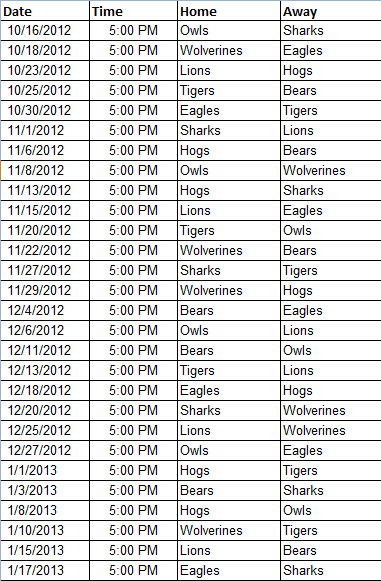
Start and/or end times should include AM or PM. For example, in this date, it's impossible to determine AM or PM: 10/16/21 8:30
The correct format is: 10/16/21 8:30 AM
Column Headings The system will need column headings set so that it understands where to put the information you're importing. Set column headings such as:
Date|Time|Home Team (or Practice description)|Away Team|Location|Game Type (Game/Practice)
Baseball sites can also add an Innings column (1 to 12) to set the number of innings for each game. Leave a cell blank to use your site's default.
Your prepared spreadsheet should look similar to this sample:
Home vs Away In order to add a Game, two teams must be listed with one team being a part of your structure.
Set one column as Home and another column as Away and list the teams for the game in the appropriate column. If one of the teams is not a part of your structure, they will be identified as a "non-league team" during the import process.
TIPS:
|
| Importing Your Schedule |
|
Once you've prepared your spreadsheet for import, multi-team sites will start with the Select the type of Import dropdown. If you're importing a Schedule for more than one team in your multi-team website, choose Multiple Teams (League). If you're importing for only one team in your organization, choose the single team from the dropdown.
Click import my data. Copy the data from your spreadsheet and paste it into the large white field. It's totally fine if it looks strange - click Submit Pasted Text to move on.
From here, the system will compare the data from your spreadsheet to the data within your website. If it is not sure about any of the data you've submitted, you'll receive an error message & will not be able to move on until you tell the system what the data is or select to ignore the data completely. Ignored data is skipped & will not be added through the import.
Once you've matched all of the data, you will move on to reviewing the teams, game types, & locations. In each step, you may need to identify or ignore data before going to the Final Review. |
| Stats Import |
|
Baseball and Softball stats can be imported from GameChanger. This is a different process that is done by clicking IMPORT in the header when editing stats for any game in the Schedule. Check out the help on the Schedule & Results Page for more info.
|
| Tips & Notes |
Tips & Notes for Multi-Team Sites
|
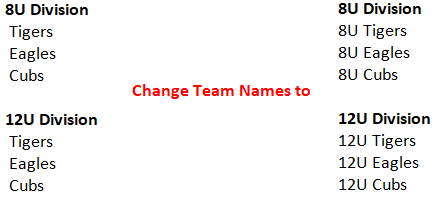
| Troubleshooting / Errors |
|
You can activate the ATTENDANCE FEATURE on your site if you want an attendance table added for games and events. Players and Coaches will be able to update the game attendance table by clicking the login button. Login and password information must be set on the Player/Coach Profiles to allow them to edit the attendance table (see below). Coaches can update attendance for all their players, while a player can only update their own attendance.
This as an ADVANCED feature available with PRO-STYLE, ALL-STAR and CHAMPION websites.
|
1) Activating the Attendance Feature |
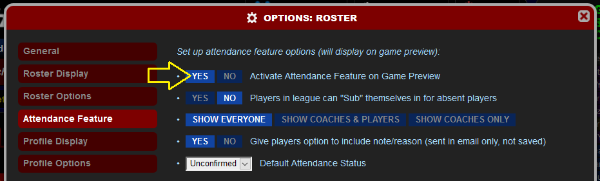 An attendance table will now appear when you go to any game or event preview on your schedule. Addional Features:
|
| 2) Allowing Players and Coaches to Login to the Attendance Table |
| An email address and password is required for Players and Coaches to login and update their attendance. Each Player and Coach must have an accurate Email address and password set on their Profile: To update a Player:
|
| 3) Using the Attendance Feature |
| Players select an upcoming date on the schedule to view the Game/Event Preview page. Using their assigned email and password, they can now login and verify their own attendance. Coaches can view attendance responses, modify attendance for all players, and logout when finished. Player Login  Player Attendance 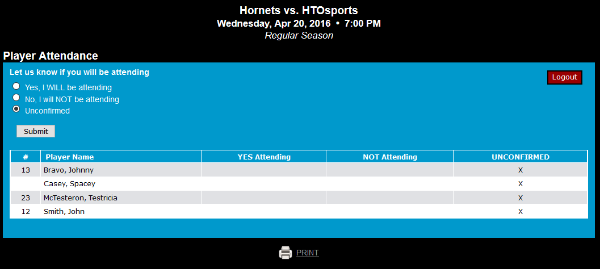 Coach View 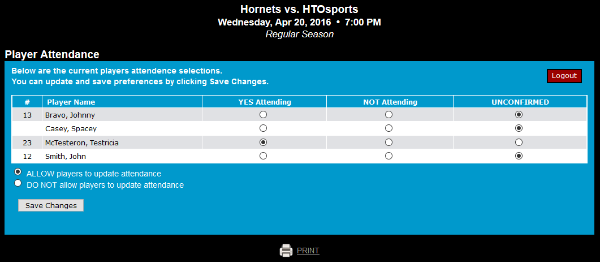 When players update their attendance status, an email is automatically sent to the website administrator notifying them that a change was made. |
| 4) Notes on using the Attendance Feature |
| - This feature can be used for all kinds of attendance, but only those assigned as players will be able to list their attendance. - You can set the default attendance status to yes, no, or unconfirmed. If you select yes or no as your default, the unconfirmed column will not be displayed. - To "hide" the attendance feature from public view, you can also assign a Visitor Password to the page:
- There is a link to request a password if you need one. This opens up a contact form to email the administrator. The administrators email is hidden for privacy. - While it is possible to enter two emails (separated by comma) for a single player for email purposes, setting two emails will require them to list both emails in the correct order when logging in to attendance. Using one or the other will not work. The email is like a "username" that must be typed exactly as it is entered for them on their player profile. League Attendance - Games between two league teams will show a separate attendance chart with logins for each team - If a team does not have an actual account the email notice sent when a player makes an update will be sent to the league administrator instead. Contact Support to: - Change the verbiage on the Attendance page |
You can upload a portrait on PRO-STYLE or better sites by pressing the Photo button next to a player on the Roster page. If no image has been added, the default image for the sport will show in place of the Portrait.
The Player Profile updates from the information entered on the Roster Page. Enter all the information for a player here. Make sure to choose a position for your player. Only players with assigned positions will appear when entering the stats on the Schedule page.
* Contact Support to add Custom Positions to your site or if you have feedback on standard positions that should be added.
If you would like to show any additional information about a player, we recommend you enter this information into the Player Bio or Highlights text areas. In these text areas you can input any data, even images, videos or an mp3 song to play on the page.
When adding a player, you can hide their email address by un-checking the Display on Profile option to the right of the email field.
* Contact support if you wish to hide any part of the profiles from the visitor site, such as the email, hometown, or birth date. We can also hide any columns from the Roster list as well.
* Contact support if you wish to change the title of the player profile page to something other than "Player Profile".
PLAYER STATISTICS
PRO-STYLE or better sport-specific sites have access to stats. The Player Profiles will highlight a player's stats.
The Player statistics update from the stats entered on the Schedule page. There is a drop-down on the top right to choose between the different seasons, or to view the entire career stats.
There is a drop-down on the right to filter the view between only Regular Season games types, or all game types. If there is only one game type for the season, this drop-down will not appear.
* Additional stat highlights can be entered manually into the player Bio or Highlights text areas.
Admistrators with access to this page can add and update the Roster list and create Player Profiles for each player.

Toll-free Support Hotline
(800) 486-0505
Weekdays 9:00 AM - 4:00 PM (EST)
Phone support not available on federal holidays.

Email Support
HomeTeamsONLINE continues to expand and improve its features thanks to the feedback and comments from our users. Please let us know if you have any questions or suggestions.